FormsFx: A Drag-and-Drop SharePoint Form Builder with Rules, Formulas, and Cascading Dropdowns
We built a SharePoint form builder that does what InfoPath did — conditional logic, calculated fields, cascading dropdowns — but runs natively as an SPFx web part. Here's how it works under the hood.
We've been building SharePoint solutions for over 15 years. In that time, one request has come up more than almost any other: "Can we get a better form for this list?"
SharePoint's default list forms are functional but flat. Every field is visible, there's no conditional logic, no calculated values, no way to organize 40 fields into something a human being would want to fill out. InfoPath solved this for a decade. Power Apps tries to solve it now but brings an entire application platform along for the ride.
We wanted something in between — a purpose-built form builder that lives inside SharePoint, works without code, and handles the real-world form scenarios that come up in every organization. So we built FormsFx.
Here's what it actually does.
24 Field Types, Not Just the Basics
Most form builders give you text, number, date, and dropdown. That covers maybe 60% of real forms. FormsFx ships with 24 field types organized into categories:
Text fields: Single-line, multi-line, rich text (with HTML sanitization), email, URL, phone. The rich text editor gives users formatting controls without exposing raw HTML — and the sanitizer strips anything dangerous on submission.
Number fields: Number, currency, and percentage — each with appropriate formatting. Currency fields display with dollar signs and decimals. Percentage fields show the % symbol and validate ranges.
Choice fields: Dropdown, multi-select, radio group, checkbox group, and toggle switch. Each supports static options, options pulled from a SharePoint list, or options filtered by another field (cascading).
Date/Time fields: Date picker, date-time picker, and time-only picker. All use Fluent UI's native date components for consistent cross-browser behavior.
People fields: People picker (single or multi-select) and group picker. These hit the SharePoint User Information List and Microsoft Graph to resolve users — the same picker behavior you expect from native SharePoint.
Lookup fields: Standard lookups from any SharePoint list in the site, plus cascading dropdowns with parent-child filtering.
File upload: Configurable max files (default 5), max file size (default 10MB), and accepted file types. Files attach to the list item.
Layout controls: Section headers and separators for organizing complex forms into logical groups.
Calculated fields: Formula-driven fields that compute values in real-time based on other fields. More on this below.
Auto-number: Automatically generates sequential IDs for submissions.
The Rules Engine: Where Forms Get Smart
This is the feature that replaces what InfoPath's conditional formatting and rules did — but with a visual interface instead of XML dialogs.
The rules engine works on a trigger → condition → action model:
Triggers
- Field change — A rule fires when a specific field value changes
- Form load — A rule fires when the form opens (useful for setting defaults or locking fields on existing items)
- Before submit — A rule fires when the user clicks Submit (for final validation)
Conditions
14 operators for building conditions:
- equals, not equals, contains, not contains
- greater than, less than, greater or equal, less or equal
- is empty, is not empty
- in (value is in a set), between (value is in a range)
- starts with, ends with
Conditions support AND/OR grouping — you can nest condition groups to build complex logic like "if Department = Sales AND (Amount > 5000 OR Priority = Urgent)."
Actions
When conditions are met:
- Show / Hide a field or entire section
- Make Required / Optional — toggle the required flag dynamically
- Make Read-Only — lock a field based on status, role, or other field values
- Set Value — auto-populate a field with a calculated or static value
- Set Options — dynamically change a dropdown's available options
- Validate — show a custom error message if a condition isn't met
What Makes It Different
Under the hood, the rules engine builds a dependency graph — a directed acyclic graph (DAG) that maps which fields depend on which other fields. This means rules evaluate in the correct order automatically. If Field C depends on Field B which depends on Field A, changing Field A correctly cascades through B and then C.
The engine also caches evaluation results based on a hash of the current form values. If nothing relevant changed, rules don't re-evaluate. This keeps complex forms with dozens of rules responsive even on slower connections.
Rules also work per-row inside repeating sections. If you have a repeating expense table, you can write a rule that says "show the Receipt Upload field when Amount > $25" and it applies independently to each row.
Formula Fields: Excel-Like Calculations in SharePoint Forms
Calculated fields use a custom expression evaluator that supports:
Functions: SUM, AVG, MIN, MAX, COUNT, ABS, FLOOR, CEIL, ROUND (with decimal precision), and IF (ternary logic).
Operators: Addition, subtraction, multiplication, division, modulo, and string concatenation with the & operator.
Field references: Use {fieldId} syntax to reference other fields. The engine auto-coerces types — strings become numbers, booleans become 1/0, nulls become 0.
Examples of what you can build:
// Line total
{Quantity} * {UnitPrice}

// Grand total from repeating section
SUM({LineItems.Amount})

// Conditional value
IF({Status} = "Approved", {RequestedAmount}, 0)

// Formatted display
"PO-" & {AutoNumber} & "-" & {Department}

// Date math (days until due)
{DueDate} - {today}
The expression evaluator uses the shunting-yard algorithm — there's no eval() call anywhere. Expressions are parsed into tokens, converted to reverse Polish notation, and evaluated safely. If an expression fails, the field shows #ERROR instead of crashing.
Formula fields update in real-time as users fill in the form. Change a quantity, and the line total and grand total recalculate instantly.
Cascading Dropdowns: Parent-Child Field Relationships
This is one of the most requested features in any SharePoint form builder. You have a "Category" dropdown and a "Subcategory" dropdown. When the user selects "Hardware" as the category, the subcategory options should filter to show only hardware-related items.
FormsFx supports three data sources for cascading:
Static options — Define the parent-child mapping directly in the form definition. Good for small, stable option sets.
SharePoint list — Point both dropdowns at a SharePoint list. The child dropdown filters by a column value matching the parent's selection. Supports display column separate from value column, unique value deduplication, and result caching with TTL.
Microsoft Graph — For dynamic data from M365 services. The child dropdown queries Graph with the parent's value as a filter parameter.
You can chain cascades — Country → State → City — and each level filters based on the previous selection. The system caches results so repeated selections don't trigger redundant API calls.
Repeating Sections: The InfoPath Feature Everyone Misses
Repeating sections let users add multiple rows of fields within a single form — expense line items, attendee lists, task breakdowns, invoice rows.
Visual row management: Users see a table-like interface with Add Row and Remove Row buttons. Rows can be reordered. The section enforces configurable min/max row counts (default: min 1, max 10).
Full field support: Every field type available in the main form works inside repeating rows — including dropdowns, date pickers, people pickers, and calculated fields.
Two storage modes:
-
JSON mode — Stores the row data as a JSON array in a single SharePoint multi-line text column. Simple, self-contained, no extra lists to manage. Best when you only need the data inside the form.
-
Child list mode — Creates a separate SharePoint list for the row data, with a
ParentItemIdforeign key linking back to the parent submission. This makes line item data fully queryable in SharePoint views, Power Automate flows, and Power BI reports.
Aggregate formulas work across repeating sections. A SUM({ExpenseItems.Amount}) field in the main form totals all the Amount values across every row in the repeating section.
Auto-Provisioning: No Manual List Setup
When you design a form and publish it, FormsFx auto-creates the SharePoint list with the correct column types. Text fields become Text columns, numbers become Number columns, choices become Choice columns with the right options, dates become DateTime columns.
If you enable workflow, it adds a SubmissionStatus choice column. If you use repeating sections in child list mode, it creates the child list with the foreign key column.
You don't have to manually create lists, add columns, or configure views. Design the form, publish, and the infrastructure creates itself.
What Else Is Under the Hood
A few more features that don't get their own section but matter in production:
Offline queue: FormsFx detects when the browser is offline and queues submissions in localStorage. When connectivity returns, it automatically flushes the queue and submits to SharePoint. Retries up to 5 times before giving up. This is critical for field workers and environments with unreliable connectivity.
Webhooks with HMAC signatures: When a form is submitted, FormsFx can POST the submission data to a Power Automate HTTP trigger or any webhook URL. The payload includes an HMAC-SHA256 signature header so the receiving system can verify the request is legitimate.
URL prefill: Pre-populate form fields from URL query strings. [email protected]&field-Priority=High opens the form with those fields already filled in. Supports type coercion — numbers auto-parse, booleans recognize "true"/"1"/"yes", multi-select fields accept comma-separated values.
Dynamic tokens: Default values can use tokens like [me] (current user), [me.email], [today], [now], and [formTitle]. These resolve at load time, so a "Submitted By" field can auto-fill with the current user's name.
Import/Export: Download any form definition as JSON. Upload it to another site or tenant. The import process validates the schema, auto-repairs common issues, and clears site-specific references so the form creates fresh lists on the new site.
Role-based access: Control field visibility and editability by SharePoint group membership. A field can be visible only to managers, editable only by HR, or read-only for everyone except the original submitter.
Audit trail: Optional per-form audit logging that tracks every form action — who opened it, what they changed, when they submitted — in a dedicated SharePoint list.
Built on SPFx, Not Bolted On
FormsFx is a SharePoint Framework web part — SPFx 1.22.2, React 17, Fluent UI v9, with PnP/SP for SharePoint API calls. It deploys as a single .sppkg file through your App Catalog.
Everything runs inside your SharePoint tenant. Form definitions are stored in SharePoint. Submissions go directly to SharePoint lists. No external servers, no CDN dependencies, no data leaving your environment.
The builder UI uses @dnd-kit for drag-and-drop, react-hook-form for form state management, and Zod for runtime validation. The formula engine uses shunting-yard parsing. The rules engine builds dependency graphs. None of this requires any additional infrastructure — it all runs in the browser within the SharePoint context.
FormsFx is available as a free download with Pro ($29/month) and Enterprise ($99/month) tiers for advanced features. Learn more at formsfx.wolffcreative.com or get in touch if you need help with your SharePoint forms strategy.
Tags

About Kevin Wolff
Kevin is a web developer and digital strategist based in Ocean City, MD. He specializes in creating modern websites, SharePoint solutions, and digital marketing strategies that help businesses grow online.
Free: AI Readiness Checklist
Subscribe and instantly download our 15-question checklist to discover where AI automation can save you time and grow your business.
Related Articles
FormsFx Has a Built-In Submissions Dashboard — Here's Why That Matters
Most SharePoint form builders stop at form submission. FormsFx includes a full dashboard for managing, searching, filtering, exporting, and approving submissions — no Power BI or custom views required.
Read More →
Offline Forms, Webhook Signatures, and Enterprise Connectors — FormsFx Beyond SharePoint Lists
FormsFx doesn't just write to SharePoint lists. It supports offline submission queuing, HMAC-signed webhooks for Power Automate, and enterprise connectors for SQL Server, Dataverse, REST APIs, and Azure Service Bus.
Read More →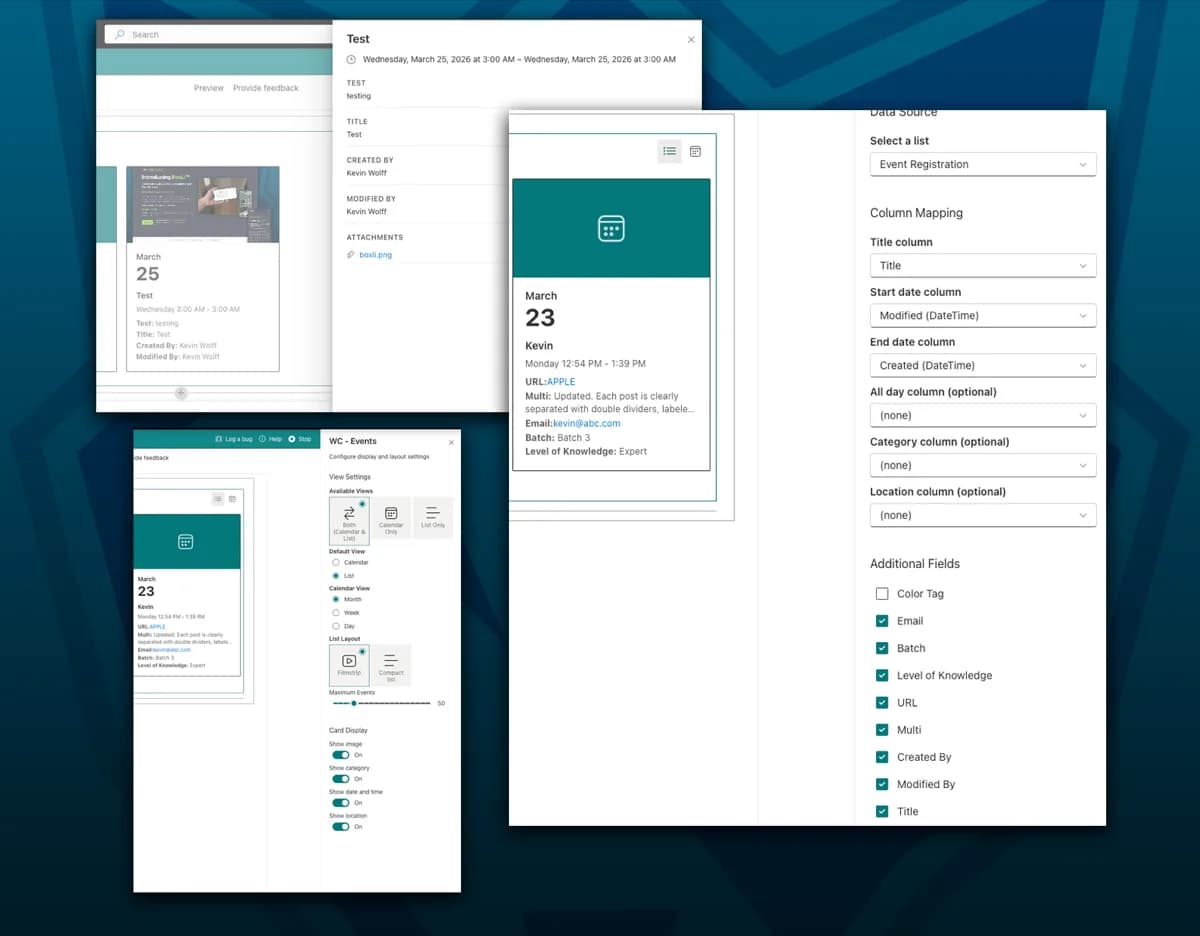
WC - Events: A Free SharePoint Web Part That Shows the Fields You Actually Need
The out-of-the-box SharePoint Events web part ignores your custom columns. WC - Events lets you pick any list, map your columns, and choose exactly which fields appear — no code required.
Read More →Need Help With This?
I help Eastern Shore businesses with web development, marketing, and AI automation. Let's talk about your project.
Need Help With Your Project?
Ready to take your business to the next level? Let's discuss how I can help.