FormsFx Has a Built-In Submissions Dashboard — Here's Why That Matters
Most SharePoint form builders stop at form submission. FormsFx includes a full dashboard for managing, searching, filtering, exporting, and approving submissions — no Power BI or custom views required.
Here's a pattern I've seen in every organization that deploys a SharePoint form builder: the form works great, submissions flow into the list, and then someone asks "How do I see all the submissions? Can I search them? Can I export them? Can I approve them without opening each item individually?"
With most form builders, the answer is "go look at the SharePoint list view" or "build a Power BI report." The form builder's job ends at submission. Everything after that is your problem.
FormsFx takes a different approach. The same web part that builds and renders forms also includes a full submissions dashboard — a third operating mode alongside the builder and the form renderer. No additional tools, no separate reporting setup, no Power BI license required.
Three Modes, One Web Part
FormsFx operates in three modes, all within the same SPFx web part:
Builder Mode — The drag-and-drop form designer. Three-panel layout: field palette on the left, form canvas in the center, property panel on the right. This is where you design the form.
Renderer Mode — The form as end users see it. Clean, responsive, with all your rules, validation, and conditional logic active. This is what you put on the page for people to fill out.
Dashboard Mode — The submissions management interface. This is where form owners and administrators manage everything that comes in.
You toggle between modes in the web part's property pane. A typical setup is one page with the renderer for submissions and another page (or the same page for admins) with the dashboard for management.
What the Dashboard Actually Does
Search and Filter
The dashboard provides a searchable, filterable table of all submissions. The search bar searches across all text-based fields — names, emails, descriptions, dropdown values. You don't have to configure which fields are searchable (though the system knows which field types are meaningful to search — it skips toggles and separators).
Filters include:
- Status filter — If your form uses the workflow feature, filter by Draft, Submitted, Approved, or Rejected
- Date range — Filter submissions by creation date
- "My Submissions" toggle — Instantly narrow to only the current user's submissions
- Column sorting — Click any column header to sort ascending or descending
Configurable Columns
You choose which form fields appear as columns in the dashboard table. The built-in columns — ID, Created date, and Created By — are always available. Beyond those, you select which of your form fields to display. Each field renders appropriately for its type: dates show formatted dates, people fields show user names, currency fields show formatted amounts.
Bulk Actions
Select multiple submissions with checkboxes and act on them together:
- Bulk edit — Change a field value across multiple submissions at once. Useful for updating status, assigning categories, or correcting data in bulk.
- Bulk delete — Remove multiple submissions with a single confirmation.
- Export to CSV — Download selected submissions (or all submissions) as a CSV file. Every field is included as a column. This is the "give me the data in Excel" button that every stakeholder eventually asks for.
Inline Editing
If a submission needs a quick correction, you can edit field values directly in the dashboard table row without opening a separate edit form. Click a cell, change the value, save. For more substantial edits, an edit dialog opens the full form pre-populated with the submission data.
Print and PDF Export
Open any individual submission and print it or export it as a formatted document. The output includes all field labels and values in a clean layout. This covers the "I need a copy of this for my records" use case that comes up in every compliance-conscious organization.
Built-In Approval Workflow
Most form scenarios are simple: user fills out form, data goes into list, done. But a significant percentage need an approval step — purchase requests, time-off requests, access requests, expense reports, change requests.
FormsFx includes a native workflow system with four statuses:
Draft → Submitted → Approved or Rejected
Rejected submissions can be resubmitted (Rejected → Submitted), creating a revision loop.
How It Works
- Enable workflow in the form settings. FormsFx auto-creates a SubmissionStatus choice column on the SharePoint list.
- Define approval roles — which SharePoint groups can approve or reject submissions.
- Users submit forms. If "Save as Draft" is enabled, users can save incomplete forms and come back later. When they submit, the status moves to "Submitted."
- Approvers see submissions in the dashboard filtered to "Submitted" status. They can approve or reject with a single click.
- Status badges display with custom colors in the dashboard — green for Approved, red for Rejected, yellow for Submitted, gray for Draft.
Summary Cards
When workflow is enabled, the dashboard shows summary cards at the top — a count of submissions in each status. At a glance, an approver can see "12 Submitted, 45 Approved, 3 Rejected, 8 Draft."
Analytics Panel
Beyond the summary cards, the dashboard includes an analytics panel that breaks down submissions by field values and time trends. How many IT requests came in this month? Which department submits the most purchase orders? What's the approval rate over the last quarter?
This isn't meant to replace Power BI for deep analysis, but it covers the 80% case where someone just needs a quick picture of what's happening with their form data.
Role-Based Access Control
Not everyone should see everything in the dashboard. FormsFx supports granular permissions:
- viewAllRoles — Which groups can see all submissions. Users not in these groups only see their own submissions.
- editRoles — Which groups can edit submissions (beyond their own).
- deleteRoles — Which groups can delete submissions.
- Approval roles — Which groups can approve or reject (separate from edit/delete).
A typical configuration: the HR group can view and manage all onboarding submissions, department managers can see submissions from their team, and individual employees can only see their own.
Saved Views
If you frequently filter the dashboard the same way — "show me all Submitted purchase requests from this month" — you can save that combination of filters, sorting, and visible columns as a named view. Switch between saved views with a dropdown. This is the dashboard equivalent of saved SharePoint list views, but scoped to the form's submission data.
Audit Trail
For compliance-heavy forms, enable the audit trail. FormsFx creates a dedicated FormAuditLog list and records every action: who opened the form, what fields they changed, when they submitted, who approved or rejected, and when. Fully searchable by form ID.
This matters for regulated industries, internal audit requirements, and any scenario where "who changed what and when" is a question that needs a definitive answer.
Why This Matters
The submissions dashboard isn't a nice-to-have — it's the difference between a form that collects data and a form that's actually useful to the people managing that data.
Without a dashboard, your options are:
- SharePoint list views — Functional but ugly, no inline editing, no bulk actions, limited search, no approval workflow UI
- Power BI — Powerful but requires a separate license, a data connection, and someone who knows how to build reports
- Custom development — Expensive, slow, and another thing to maintain
FormsFx bundles all of this into the same web part that builds and renders the form. One .sppkg file, one deployment, three modes.
FormsFx dashboard features are available in the Pro tier ($29/month per tenant). Try it free at formsfx.wolffcreative.com or contact us to discuss your SharePoint forms needs.
Tags

About Kevin Wolff
Kevin is a web developer and digital strategist based in Ocean City, MD. He specializes in creating modern websites, SharePoint solutions, and digital marketing strategies that help businesses grow online.
Free: AI Readiness Checklist
Subscribe and instantly download our 15-question checklist to discover where AI automation can save you time and grow your business.
Related Articles
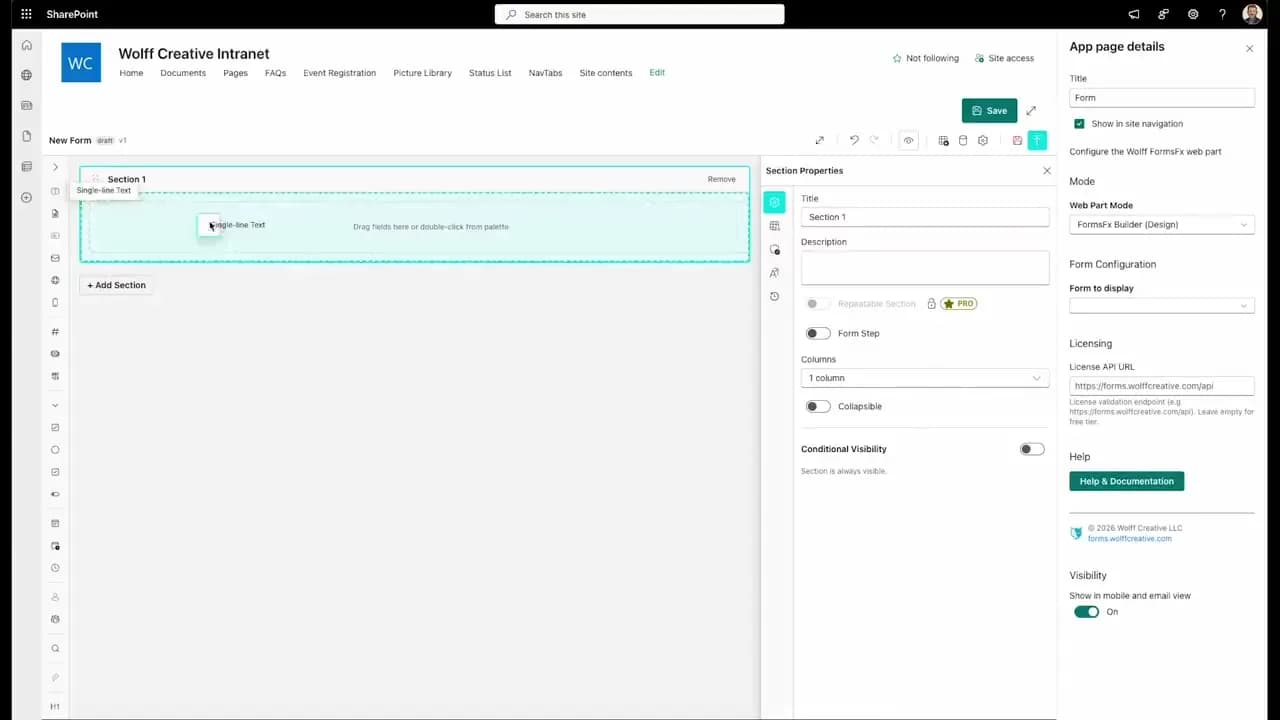
FormsFx: A Drag-and-Drop SharePoint Form Builder with Rules, Formulas, and Cascading Dropdowns
We built a SharePoint form builder that does what InfoPath did — conditional logic, calculated fields, cascading dropdowns — but runs natively as an SPFx web part. Here's how it works under the hood.
Read More →
Offline Forms, Webhook Signatures, and Enterprise Connectors — FormsFx Beyond SharePoint Lists
FormsFx doesn't just write to SharePoint lists. It supports offline submission queuing, HMAC-signed webhooks for Power Automate, and enterprise connectors for SQL Server, Dataverse, REST APIs, and Azure Service Bus.
Read More →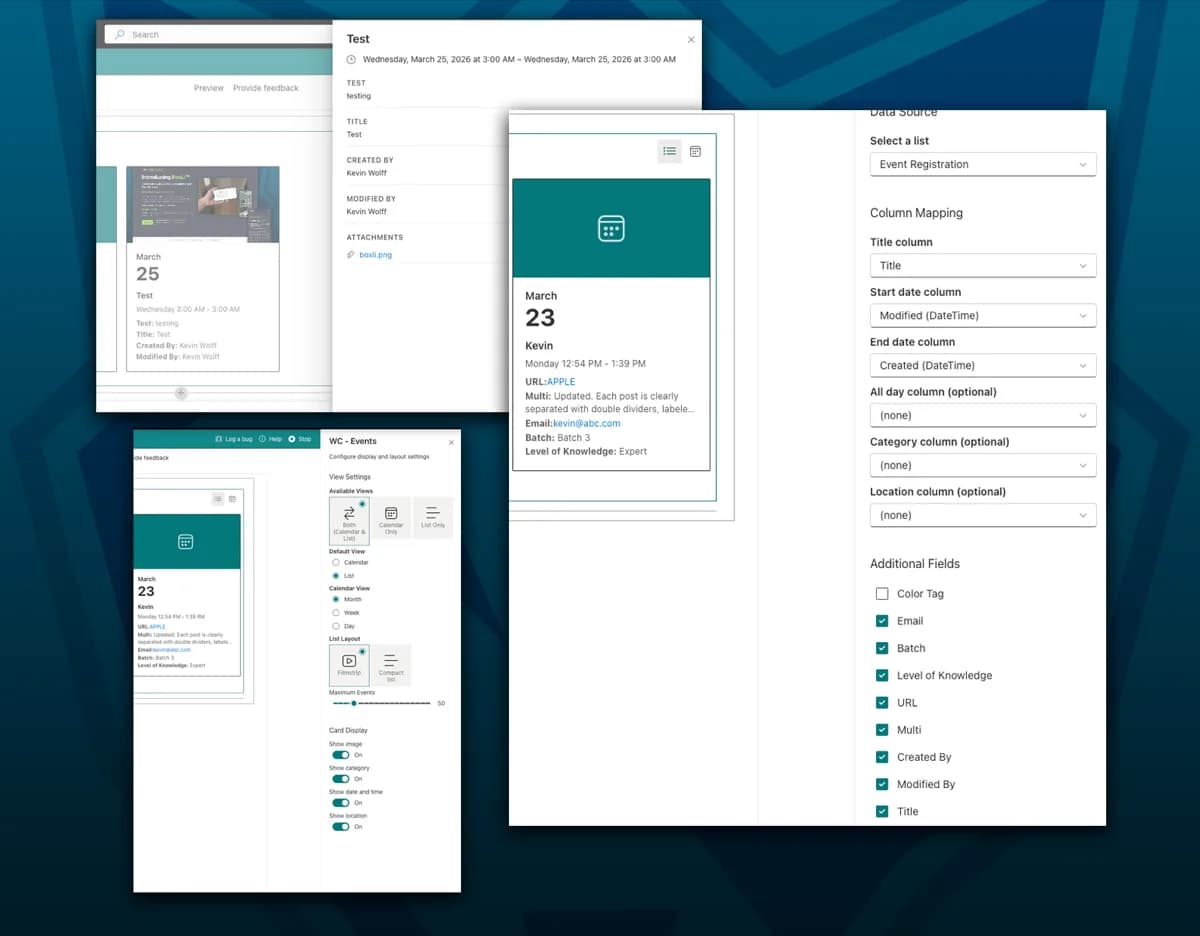
WC - Events: A Free SharePoint Web Part That Shows the Fields You Actually Need
The out-of-the-box SharePoint Events web part ignores your custom columns. WC - Events lets you pick any list, map your columns, and choose exactly which fields appear — no code required.
Read More →Need Help With This?
I help Eastern Shore businesses with web development, marketing, and AI automation. Let's talk about your project.
Need Help With Your Project?
Ready to take your business to the next level? Let's discuss how I can help.