5 Free AI Tools Worth Trying This January
Skip the hype and expensive subscriptions. These five free AI tools deliver real value for small businesses—tested and recommended for January 2026.
New year, new tools to try. But let's skip the usual "50 amazing AI tools!" listicle that leaves you overwhelmed and subscribed to nothing.
Instead, here are five AI tools that are genuinely free (not "free trial"), actually useful, and worth setting up this month. I've tested each one with real client work, and they all deliver value without requiring a credit card.
1. ChatGPT Free Tier (Still the Swiss Army Knife)
What it is: OpenAI's conversational AI, now with GPT-4o access on the free tier.
Why it's worth it in 2026: The free version has gotten significantly more capable. You get access to the same model that powers the paid tier, just with usage limits. For most small business needs, you'll never hit those limits.
Best uses for small business:
Research and learning:
- "Explain [industry term] like I'm new to the field"
- "What are the main challenges facing [industry] businesses in 2026?"
- "Compare the pros and cons of [option A] vs [option B] for a small business"
Writing assistance:
- "Help me write a professional email declining this request politely"
- "Make this paragraph clearer: [paste your draft]"
- "Give me 5 different ways to say [your message]"
Brainstorming:
- "What questions should I ask before hiring a [type of vendor]?"
- "Give me 10 blog post ideas about [your expertise]"
- "What problems might a [your customer type] have that I could solve?"
Pro tips:
- Be specific in your requests—vague questions get vague answers
- Ask for multiple options, then pick and combine the best elements
- Use it as a starting point, not a final product
- Always fact-check anything factual—it still makes things up
Limitations: Usage caps during peak times, no persistent memory across sessions, can't access the internet in real-time.
Get started: chat.openai.com
2. Remove.bg (Background Removal Magic)
What it is: Automatic background removal for images—upload a photo, get a transparent background in seconds.
Why it's worth it: This used to require Photoshop skills or paying a designer. Now it takes literally five seconds and produces professional results.
Best uses for small business:
Product photography:
- Create clean product images for your website
- Make consistent backgrounds across your product catalog
- Prepare images for marketplaces that require white backgrounds
Social media:
- Extract people or products for collages
- Create cleaner images for promotional posts
- Remove distracting backgrounds from team photos
Website updates:
- Update headshots without expensive reshoots
- Create consistent team photo styling
- Prepare images for testimonial sections
Real example: A client selling handmade jewelry was photographing products on her kitchen table. We used Remove.bg to eliminate the backgrounds, then placed products on clean white backgrounds. Professional-looking product photos, zero photography skills required.
Pro tips:
- Works best with clear subject/background contrast
- High-resolution images give better results
- Download in PNG format to keep the transparency
- For best quality, use the "Download HD" option (free with watermark, or small per-image fee)
Limitations: Free downloads include a small resolution reduction. HD downloads without watermark cost about $1 each. Fine edge details (like hair) can be imperfect.
Get started: remove.bg
3. Otter.ai Free Plan (Meeting Memory)
What it is: AI-powered meeting transcription and summarization.
Why it's worth it: The free tier gives you 300 minutes of transcription per month—enough for most small businesses. Having a searchable record of every meeting is genuinely game-changing.
Best uses for small business:
Client meetings:
- Never miss what was discussed
- Create accurate meeting notes automatically
- Search past conversations for specific details
- Share transcripts with team members who couldn't attend
Sales calls:
- Review what prospects said (and how they said it)
- Track objections and questions that come up repeatedly
- Train new team members with real call examples
- Create follow-up emails based on actual discussion
Internal meetings:
- Generate action items automatically
- Keep everyone aligned on decisions
- Reference past discussions instead of rehashing them
Real example: I used to spend 15-20 minutes after every client call writing up notes. Now Otter generates a summary automatically, and I just review and adjust. That's 5+ hours saved per month on a task I dreaded.
Pro tips:
- Test audio quality before important meetings
- Name your meetings descriptively for easy searching later
- Review summaries promptly—AI occasionally misunderstands jargon
- Use the mobile app for in-person meeting recording
Limitations: 300 minutes/month on free tier (about 5-7 hours of meetings), 30-minute max per conversation. Real-time transcription sometimes lags. Accuracy depends on audio quality and speaker clarity.
Get started: otter.ai
4. Canva Free + Magic Studio (Design Without Designers)
What it is: Canva's design platform now includes AI-powered features in their free tier—text-to-image generation, background removal, magic resize, and smart design suggestions.
Why it's worth it: You can create professional-looking graphics without design skills. The AI features handle the tedious parts while you focus on what you want to communicate.
Best uses for small business:
Social media graphics:
- Create branded posts in minutes
- Resize one design for multiple platforms automatically
- Generate simple illustrations to accompany posts
- Maintain visual consistency with brand kits
Marketing materials:
- Design flyers and promotional materials
- Create simple presentations
- Make email headers and graphics
- Build simple infographics
Quick content:
- Quote graphics for social media
- Announcement images
- Event promotions
- Job posting graphics
AI features worth trying:
Magic Resize: Create one design, then automatically adapt it for different platforms and sizes.
Background Remover: Similar to Remove.bg, built right into Canva.
Magic Write: AI text generation within Canva for headlines and copy.
Text to Image: Generate simple illustrations (quality varies, but useful for abstract concepts).
Pro tips:
- Start with templates instead of blank canvases
- Stick to 2-3 fonts and colors for consistency
- Use the "Brand Kit" feature even on free tier
- The mobile app is great for quick social posts
Limitations: Free tier has a smaller template library. Some premium elements require payment. AI image generation is basic compared to specialized tools. Pro features are limited.
Get started: canva.com
5. Google's NotebookLM (Research Superpower)
What it is: Google's AI-powered research tool that analyzes documents you upload and answers questions about them.
Why it's worth it: Unlike ChatGPT (which works from general knowledge), NotebookLM works specifically with your documents—contracts, reports, research, whatever you upload. It's like having a research assistant who's read everything.
Best uses for small business:
Document analysis:
- Upload contracts and ask "What are my obligations under this agreement?"
- Analyze competitor materials: "What claims does this brochure make?"
- Review industry reports: "Summarize the key findings relevant to small businesses"
Learning from content:
- Upload training materials and generate quizzes
- Create summaries of technical documentation
- Turn long reports into actionable bullet points
Research synthesis:
- Upload multiple articles and ask for common themes
- Compare different sources on the same topic
- Generate overview documents from scattered research
Real example: A client was negotiating a commercial lease and uploaded the 40-page contract. NotebookLM helped identify key terms, unusual clauses, and questions to ask the landlord—work that would have taken hours to do manually.
Pro tips:
- Upload multiple related documents for richer analysis
- Be specific in your questions
- Use it to find specific information in long documents
- Great for contracts, reports, and research materials
Limitations: Requires uploading your documents (consider sensitivity). Works best with text-heavy documents. Can't access external information—only what you upload. Still in experimental phase.
Get started: notebooklm.google.com
Bonus: The Honorable Mentions
These didn't make the top 5, but they're worth knowing about:
Grammarly Free: Basic grammar and spelling checking. Not as AI-advanced as the paid tier, but catches most errors.
Perplexity.ai Free: AI search engine that cites sources. Good for research when you need to verify information.
Claude.ai Free: Anthropic's alternative to ChatGPT. Some people prefer its writing style. Worth trying to see which you like better.
Microsoft Copilot (Free with Bing): Similar to ChatGPT, integrated with Microsoft products. Free tier is quite capable.
Gamma.app Free: AI presentation builder. Upload an outline, get a presentation. Limited free credits but useful for occasional needs.
How to Actually Start Using These
Here's your action plan for this month:
Week 1: Set up the essentials
- Create accounts for ChatGPT and Canva (you might already have these)
- Try one task with each—draft an email, create a social graphic
- Note how long it takes vs. your usual method
Week 2: Add transcription
- Set up Otter.ai
- Record your next 2-3 meetings
- Review the transcripts for accuracy
- Evaluate if it's saving you note-taking time
Week 3: Try background removal
- Gather 5 images that need cleaner backgrounds
- Process them through Remove.bg
- Compare results to what you'd get otherwise
Week 4: Experiment with NotebookLM
- Upload a document you've been meaning to analyze
- Ask specific questions about the content
- See if it surfaces insights you'd have missed
End of month: Evaluate
- Which tools are you actually using?
- Which saved meaningful time?
- Which should you continue with?
- Which aren't worth the hassle?
The Real Cost of "Free"
A note on free tiers: they exist to get you hooked on paid versions. That's fine—it's a legitimate business model—but be aware of it.
Watch for:
- Usage limits that reset monthly (plan accordingly)
- Features that require upgrading for real value
- Quality differences between free and paid
- Data usage and privacy policies
My philosophy: Start free, prove value, then pay for tools that genuinely help. Most small businesses can get real value from free tiers without ever needing to upgrade.
What I'm Not Recommending
A few tools that get lots of attention but I'd skip for now:
AI image generators (Midjourney, DALL-E, etc.): The output still looks obviously AI-generated, which increasingly signals "low effort" to audiences.
AI video tools: The technology isn't ready for professional use. Uncanny valley problems persist.
AI voice cloning: Legal gray areas and trust issues make this risky for business use.
Fully automated content tools: Tools that promise to run your content marketing on autopilot produce the AI slop that's flooding the internet. Don't add to it.
The Bottom Line
You don't need to spend hundreds on AI subscriptions to get real value. These five free tools can genuinely save time and improve output:
- ChatGPT Free — Your AI research and writing assistant
- Remove.bg — Professional background removal in seconds
- Otter.ai Free — Never miss what was said in a meeting
- Canva Free + Magic Studio — Design without designers
- NotebookLM — Deep analysis of your documents
Pick one or two, try them this week, and see if they actually help. The best AI tool is the one you'll actually use.
Want help figuring out which tools make sense for your specific workflow? Let's chat about your tech stack—free consultation, no sales pitch.
Tags

About Kevin Wolff
Kevin is a web developer and digital strategist based in Ocean City, MD. He specializes in creating modern websites, SharePoint solutions, and digital marketing strategies that help businesses grow online.
Free: AI Readiness Checklist
Subscribe and instantly download our 15-question checklist to discover where AI automation can save you time and grow your business.
Related Articles
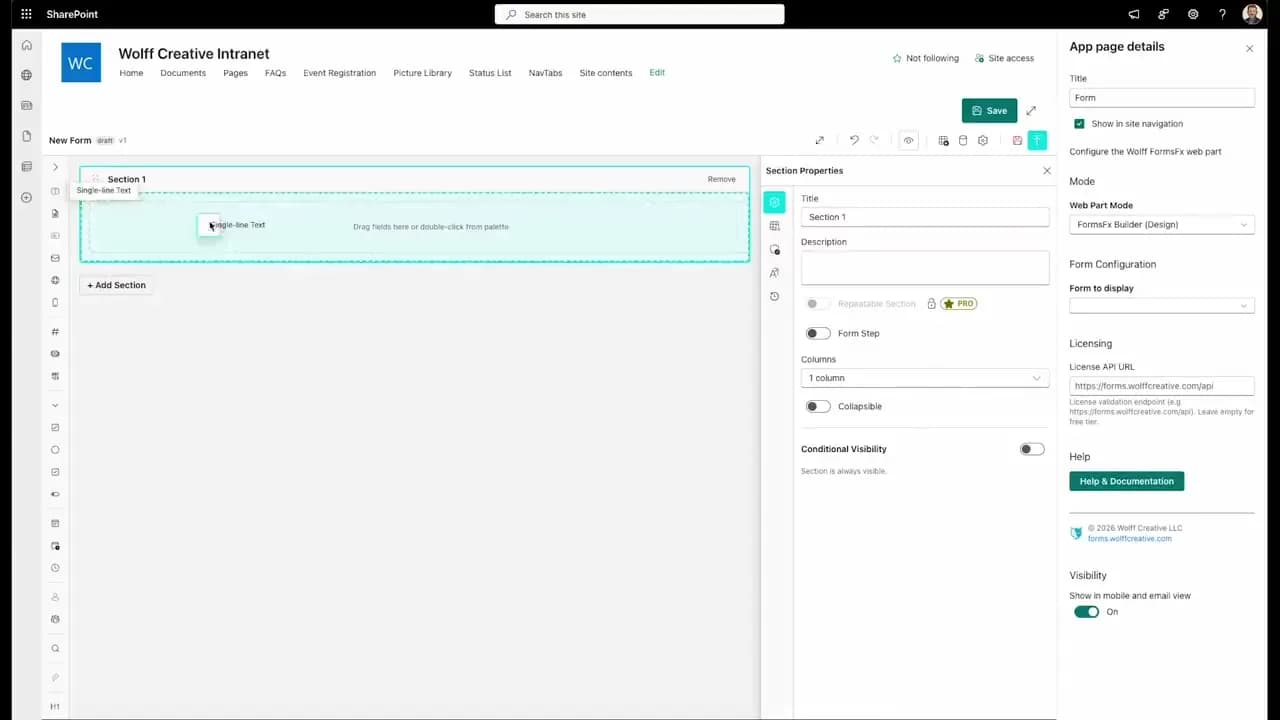
FormsFx: A Drag-and-Drop SharePoint Form Builder with Rules, Formulas, and Cascading Dropdowns
We built a SharePoint form builder that does what InfoPath did — conditional logic, calculated fields, cascading dropdowns — but runs natively as an SPFx web part. Here's how it works under the hood.
Read More →
FormsFx Has a Built-In Submissions Dashboard — Here's Why That Matters
Most SharePoint form builders stop at form submission. FormsFx includes a full dashboard for managing, searching, filtering, exporting, and approving submissions — no Power BI or custom views required.
Read More →
Offline Forms, Webhook Signatures, and Enterprise Connectors — FormsFx Beyond SharePoint Lists
FormsFx doesn't just write to SharePoint lists. It supports offline submission queuing, HMAC-signed webhooks for Power Automate, and enterprise connectors for SQL Server, Dataverse, REST APIs, and Azure Service Bus.
Read More →Need Help With This?
I help Eastern Shore businesses with web development, marketing, and AI automation. Let's talk about your project.
Need Help With Your Project?
Ready to take your business to the next level? Let's discuss how I can help.