Microsoft Copilot for SharePoint: What Small Businesses Need to Know
Microsoft Copilot is transforming how businesses interact with their SharePoint content. Here's what you need to know before making the investment.
The AI assistant revolution has arrived in SharePoint. Microsoft Copilot—the AI tool that's been dominating tech headlines throughout 2025—is now deeply integrated into SharePoint Online, transforming how businesses interact with their documents, sites, and content libraries.
But what does this actually mean for small and medium businesses already using Microsoft 365? Is it worth the investment? And what do you need to have in place before you can benefit from it?
Having worked with SharePoint environments ranging from small teams to organizations with 5,000+ users, I've seen firsthand what makes AI tools succeed or fail in real business environments. Here's what you need to know.
What is Microsoft Copilot for SharePoint?
Microsoft Copilot is an AI assistant built directly into Microsoft 365 applications, including SharePoint. Unlike standalone AI tools like ChatGPT, Copilot works within your existing Microsoft environment and has access to your organization's data—with the same security permissions already in place.
Key Capabilities
Intelligent Document Search
Instead of browsing through folder after folder, you can ask Copilot questions like:
- "Find the Q3 sales report from last year"
- "Show me all documents mentioning the Johnson account"
- "What's our policy on employee remote work?"
Copilot searches across your SharePoint libraries and returns relevant results with context, not just a list of files.
Document Summarization
Drop into any document and ask Copilot to:
- Summarize a 50-page report in bullet points
- Extract key action items from meeting notes
- Highlight the main changes between document versions
- Identify potential issues or concerns in contracts
Content Generation
Copilot can draft new content based on your existing documents:
- Create a project summary from scattered meeting notes
- Draft an FAQ based on your policy documents
- Generate a newsletter from recent announcements
- Write descriptions for SharePoint pages and libraries
Site and Page Intelligence
For SharePoint site owners, Copilot assists with:
- Suggesting page layouts based on content
- Recommending related content for pages
- Identifying outdated or unused content
- Generating site descriptions and metadata
How It Differs from ChatGPT
The critical difference: Copilot works inside your secure Microsoft 365 environment.
When you use ChatGPT, you're uploading your documents to an external service. With Copilot:
- Your data never leaves your Microsoft 365 tenant
- Copilot respects your existing SharePoint permissions
- Users only see results from documents they have access to
- Compliance and security policies remain intact
- No need to worry about training AI on your proprietary information
This isn't a minor distinction—it's the difference between a useful tool and a compliance nightmare.
Real Benefits for Small-Medium Businesses
The marketing materials promise productivity gains, but what does Copilot actually deliver for smaller organizations?
Finding Information Faster
For businesses with years of accumulated SharePoint content, finding specific information is a constant pain point. Staff spend hours hunting through folders, guessing at file names, or asking colleagues who "might remember where that document is."
Before Copilot: "I need to find our vendor agreement with Atlantic Supplies. Let me check the Contracts folder... Vendors folder... maybe it's under Purchasing... who handled that account originally?"
With Copilot: "Find the most recent vendor agreement with Atlantic Supplies." Done.
For an Ocean City property management company I've worked with, document search time dropped from an average of 15 minutes to under 2 minutes for complex queries.
Summarizing Documents and Decisions
Every business accumulates meeting notes, project documentation, and reports that nobody has time to read thoroughly. Copilot excels at distilling these down.
Practical example: A seasonal tourism business needs to onboard new staff each spring. Instead of expecting new hires to read through hundreds of pages of documentation, they can ask Copilot to summarize operational procedures, safety protocols, and customer service guidelines.
Common summarization uses:
- Board meeting minutes → executive summary
- Technical documentation → quick-start guides
- Legal contracts → plain-language key points
- Project histories → lessons learned summaries
Drafting Content from Existing Materials
Content creation is time-consuming. Copilot accelerates it by leveraging what you've already written.
Example workflow:
- You have 12 months of weekly team updates in SharePoint
- Ask Copilot to "Create an annual summary highlighting major achievements and challenges"
- Review, edit, and publish in a fraction of the time
This is particularly valuable for:
- Annual reports and reviews
- Customer-facing documentation
- Training materials
- Marketing content based on internal expertise
Better Decision-Making
When Copilot can quickly surface relevant historical data, decisions improve:
- "What did we decide last time we faced this shipping delay issue?"
- "What's our typical timeline for projects of this scope?"
- "Who worked on the similar Johnson project in 2023?"
Institutional knowledge becomes accessible rather than locked in departing employees' heads.
What You Need to Get Started
Before you can benefit from Copilot, you need the right foundation in place.
Licensing Requirements
Microsoft 365 Subscription: You need one of:
- Microsoft 365 Business Premium
- Microsoft 365 E3 or E5
- Office 365 E3 or E5
Copilot License: On top of your Microsoft 365 subscription, Copilot requires an additional license:
- Microsoft 365 Copilot: approximately $30 per user per month
- Minimum purchase typically starts at a small number of users
Cost Reality: For a 10-person company, you're looking at roughly $300/month ($3,600/year) for Copilot on top of existing Microsoft 365 costs. That's a real investment that needs to deliver real value.
SharePoint Prerequisites
Copilot needs content to work with:
- Active SharePoint Online environment
- Documents stored in SharePoint libraries (not just local drives)
- Reasonable content organization (Copilot can't make sense of chaos)
Timeline Expectations
Deployment: Once licensed, Copilot can be enabled within hours.
Productivity gains: Most organizations see noticeable value within 2-4 weeks as users learn effective prompting.
Full integration: 2-3 months for teams to naturally incorporate Copilot into daily workflows.
Don't expect transformation overnight. Like any tool, there's a learning curve.
Is Copilot Right for Your Organization?
Not every business will benefit equally from Copilot. Here's how to evaluate fit.
Good Fit Criteria
Document-heavy workflows: If your team regularly searches for, reads, and creates documents, Copilot pays dividends.
Search is a pain point: Do employees complain about finding information? Copilot directly addresses this.
Content creation demands: Regular need for reports, summaries, documentation, or customer communications.
Knowledge worker teams: Staff whose value comes from synthesizing information rather than manual tasks.
Growth without proportional hiring: Copilot helps existing teams handle more work.
Not-Yet-Ready Criteria
Limited SharePoint adoption: If most documents live on local drives, network shares, or personal OneDrive folders, Copilot has nothing to search.
Disorganized content: Thousands of files with inconsistent naming and no metadata? Copilot will struggle to find relevance in the noise.
Very small teams: With 2-3 people, you probably already know where everything is.
Budget-constrained: $30/user/month is real money. If the ROI case isn't clear, wait.
Compliance uncertainty: If you're unsure how AI fits your industry regulations, get clarity first.
Questions to Ask Before Investing
- What's our current SharePoint adoption rate? (Users actively storing and finding documents there)
- How much time do employees spend searching for information weekly?
- What content creation tasks take disproportionate time?
- Do we have recurring needs for document summarization or knowledge extraction?
- What's our budget for productivity tools, and what ROI do we expect?
How to Prepare Your SharePoint Environment
The quality of Copilot's outputs directly reflects the quality of your SharePoint environment. Garbage in, garbage out.
Content Organization
Logical folder structures: Copilot works better when content is organized logically. If even humans can't find documents, AI won't magically solve it.
Consistent naming conventions: "Q3-2025-Sales-Report-Final.pdf" is infinitely more useful than "report (1) final FINAL.pdf"
Current content: Archive or delete outdated documents. Copilot might surface that 2019 policy document when you want the 2025 version.
Metadata and Tagging
This is where many organizations fall short—and where the biggest gains exist.
Document properties: Use SharePoint's built-in metadata fields (Author, Department, Project, Document Type) consistently.
Content types: Define content types for common document categories to enable better filtering and search.
Managed metadata: For larger organizations, implement a managed metadata taxonomy.
Why it matters: When you ask Copilot for "the latest HR policy on vacation time," metadata helps it distinguish between draft versions, different departments, and document purposes.
Security and Permissions Review
Copilot respects SharePoint permissions. This is good for security but requires attention:
Verify permissions are correct: Copilot might surface documents users technically have access to but shouldn't see. Audit your permission structure.
Oversharing risks: If "Everyone" has access to sensitive folders, Copilot will helpfully surface that content to everyone.
Site classification: Use sensitivity labels to control what Copilot can access and reference.
Data Quality Considerations
Document completeness: Meeting notes that say "discussed budget" don't help. "Approved $50,000 for Q2 marketing campaign" does.
Current information: If your SharePoint is full of outdated content, Copilot will confidently present outdated answers.
Duplicates: Multiple versions of the same document create confusion for both humans and AI.
Quality investment: Time spent improving your SharePoint content quality pays dividends in Copilot accuracy.
The Bottom Line
Microsoft Copilot for SharePoint is genuinely useful technology—when deployed correctly. It's not magic, and it won't fix fundamental problems with how your organization manages information.
The organizations that benefit most have already invested in SharePoint as their document management backbone. They have reasonably organized content, defined workflows, and employees who waste meaningful time on document search and creation.
The organizations that won't benefit are those hoping Copilot will compensate for years of poor information management, or those where SharePoint adoption is marginal.
My Recommendation
If you're considering Copilot:
- Audit your SharePoint environment first. How organized is it? How actively used?
- Quantify the pain points. How much time does document search actually consume?
- Start with a pilot. Enable Copilot for 3-5 users who will benefit most and measure results.
- Invest in preparation. Budget time for content cleanup and metadata improvement.
- Train users. Copilot effectiveness depends on learning how to ask good questions.
The $30/user/month cost is justified when it saves hours of weekly search time and accelerates content creation. It's wasted when it's deployed into chaos.
Need Help Evaluating or Implementing Copilot?
I help businesses across the Delmarva region assess their Microsoft 365 environments and implement AI tools effectively. Whether you need a SharePoint health check, Copilot readiness assessment, or help preparing your environment for AI, I can help you avoid the common pitfalls and get real value from your technology investments.
Looking for expert guidance on Microsoft 365 and SharePoint? I've helped organizations from small businesses to 5,000+ user enterprises build effective SharePoint solutions. Let's discuss your project.
Tags

About Kevin Wolff
Kevin is a web developer and digital strategist based in Ocean City, MD. He specializes in creating modern websites, SharePoint solutions, and digital marketing strategies that help businesses grow online.
Free: AI Readiness Checklist
Subscribe and instantly download our 15-question checklist to discover where AI automation can save you time and grow your business.
Related Articles
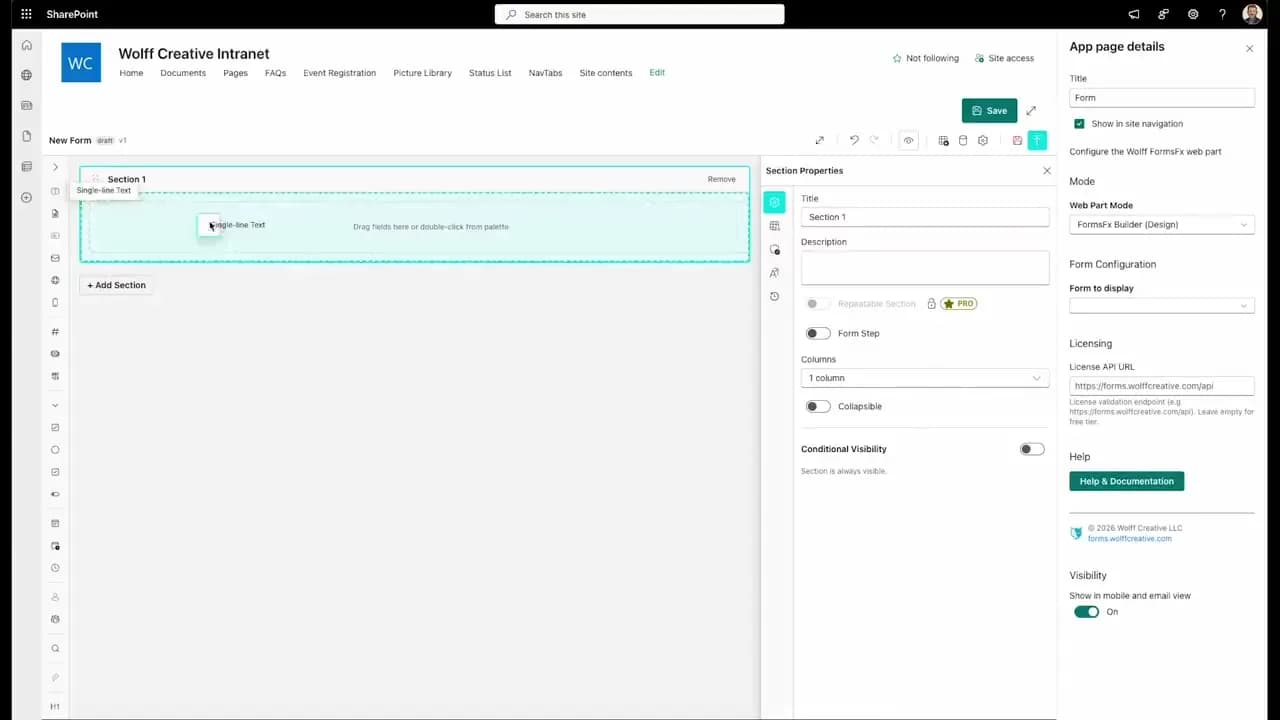
FormsFx: A Drag-and-Drop SharePoint Form Builder with Rules, Formulas, and Cascading Dropdowns
We built a SharePoint form builder that does what InfoPath did — conditional logic, calculated fields, cascading dropdowns — but runs natively as an SPFx web part. Here's how it works under the hood.
Read More →
FormsFx Has a Built-In Submissions Dashboard — Here's Why That Matters
Most SharePoint form builders stop at form submission. FormsFx includes a full dashboard for managing, searching, filtering, exporting, and approving submissions — no Power BI or custom views required.
Read More →
Offline Forms, Webhook Signatures, and Enterprise Connectors — FormsFx Beyond SharePoint Lists
FormsFx doesn't just write to SharePoint lists. It supports offline submission queuing, HMAC-signed webhooks for Power Automate, and enterprise connectors for SQL Server, Dataverse, REST APIs, and Azure Service Bus.
Read More →Need Help With This?
I help Eastern Shore businesses with web development, marketing, and AI automation. Let's talk about your project.
Need Help With Your Project?
Ready to take your business to the next level? Let's discuss how I can help.