Power Apps for Small Business: Building Your First App
A step-by-step guide to creating your first Power App to automate business processes.
Microsoft Power Apps can transform how your small business operates, but getting started can feel overwhelming. After implementing Power Apps solutions that saved hundreds of hours at TidalHealth and helping numerous small businesses automate their processes, I'll walk you through building your first app—no coding experience required.
What is Power Apps?
Power Apps is Microsoft's low-code platform that lets you build custom business applications. Think of it as a way to create professional apps as easily as making a PowerPoint presentation. If you have Microsoft 365, you likely already have access to Power Apps.
Why Small Businesses Need Power Apps
Traditional software often doesn't fit small business needs:
- Too expensive: Enterprise software costs thousands
- Too complex: Features you'll never use
- Too rigid: Can't adapt to your unique processes
Power Apps solves these problems:
- Included with Microsoft 365: No additional cost for many businesses
- Customizable: Build exactly what you need
- Integrates with your tools: Works with Excel, SharePoint, Teams, and more
- No coding required: Drag-and-drop interface
Real Small Business Use Cases
Here are actual apps I've built for small businesses:
Restaurant: Daily Inventory Tracker
- Problem: Paper inventory sheets getting lost
- Solution: Mobile app for kitchen staff
- Result: 30% reduction in food waste
Real Estate: Property Showing Scheduler
- Problem: Double-bookings and missed appointments
- Solution: Automated scheduling with client notifications
- Result: 50% less administrative time
Retail: Customer Feedback System
- Problem: Lost feedback forms, no follow-up
- Solution: Digital feedback with automatic alerts
- Result: 90% response rate to issues
Service Company: Work Order Management
- Problem: Technicians using paper forms
- Solution: Mobile app with photo uploads
- Result: 2-hour faster invoice turnaround
Let's Build Your First App: Customer Feedback Tracker
We'll build a simple but powerful customer feedback app that you can customize for your business.
Prerequisites
Before starting, ensure you have:
- Microsoft 365 subscription (Business Basic or higher)
- Power Apps access (check apps.powerapps.com)
- Admin permissions to create apps
Step 1: Set Up Your Data Source
First, we'll create a SharePoint list to store feedback:
- Go to SharePoint (your-company.sharepoint.com)
- Create a new list called "Customer Feedback"
- Add these columns:
- Customer Name (Text)
- Email (Text)
- Rating (Number, 1-5)
- Comments (Multiple lines of text)
- Response Required (Yes/No)
- Status (Choice: New, In Progress, Resolved)
- Date Created (already included)
Step 2: Create Your Power App
- Navigate to Power Apps (make.powerapps.com)
- Click "Create" → "Start from data"
- Choose SharePoint as your data source
- Select your "Customer Feedback" list
- Power Apps creates a basic app automatically
Step 3: Customize the App Interface
Now let's make it user-friendly:
Home Screen Customization
1. Select the BrowseScreen1
2. Change the title to "Customer Feedback"
3. Modify the gallery to show:
   - Customer Name (Title)
   - Rating (Subtitle)
   - Status (Body)
Add Visual Indicators
Add color coding for status:
1. Select the Status label in the gallery
2. Go to "Color" property
3. Add this formula:
   If(ThisItem.Status.Value = "New", Color.Red,
      ThisItem.Status.Value = "In Progress", Color.Orange,
      Color.Green)
Create a Dashboard
Add these elements to your home screen:
- Total Feedback Count:
CountRows(CustomerFeedback) - Average Rating:
Average(CustomerFeedback, Rating) - Pending Responses:
CountIf(CustomerFeedback, Status.Value = "New")
Step 4: Add Business Logic
Automatic Alerts
Set up email notifications for low ratings:
// In the OnSuccess property of the submit button:
If(RatingValue.Value <= 2,
   Office365Outlook.SendEmailV2(
      "[email protected]",
      "Low Rating Alert",
      "New feedback with rating " & RatingValue.Value & " from " & CustomerNameInput.Text
   )
)
Data Validation
Ensure quality data entry:
// In the OnSelect property of submit button:
If(IsBlank(CustomerNameInput.Text) Or IsBlank(EmailInput.Text),
   Notify("Please fill in all required fields", NotificationType.Error),
   SubmitForm(EditForm1)
)
Step 5: Enhance User Experience
Add a Rating Slider
- Insert a Slider control
- Set Min to 1, Max to 5
- Add star icons that light up based on value
Include Photo Capability
- Add a Camera control
- Allow users to attach photos of issues
- Store in SharePoint document library
Create Quick Actions
Add buttons for common responses:
- "Thank You" - sends appreciation email
- "Follow Up" - creates task in Planner
- "Escalate" - notifies management
Step 6: Test Your App
Before launching:
-
Test all functions:
- Submit new feedback
- Edit existing entries
- Check email notifications
- Verify data saves correctly
-
Test on different devices:
- Desktop browser
- Mobile phone
- Tablet
-
Test with real users:
- Have employees try it
- Gather their feedback
- Make adjustments
Step 7: Deploy to Your Team
Share the App
- Click "Share" in Power Apps
- Add users or groups
- Set permissions (User or Co-owner)
- Include instructions
Add to Microsoft Teams
- Go to Teams
- Click "+" to add a tab
- Choose Power Apps
- Select your app
- Team members can now access directly in Teams
Advanced Features to Add Later
Once comfortable with basics, consider adding:
Analytics Dashboard
- Trend charts showing ratings over time
- Heat map of common issues
- Customer satisfaction score
Integration with Other Systems
- Outlook: Automatic calendar reminders
- Planner: Create follow-up tasks
- Power Automate: Complex workflows
- Excel: Export reports
AI Capabilities
- Sentiment analysis of comments
- Automatic categorization
- Suggested responses
Common Pitfalls and How to Avoid Them
1. Overcomplicating Your First App
Start simple. Get a basic version working, then add features.
2. Ignoring Mobile Users
Always test on phones. Most field workers use mobile devices.
3. Poor Naming Conventions
Use clear names like "CustomerEmailInput" not "TextInput1"
4. Not Planning for Growth
Design for scale. Your 10-record test will become 10,000 records.
5. Skipping Training
Invest in training. Show users how to use the app effectively.
Cost Considerations
What's Included with Microsoft 365
- Power Apps for Microsoft 365
- 2GB database storage
- Standard connectors (SharePoint, Teams, etc.)
When You Need Premium
- Connecting to external databases
- Using AI Builder
- Premium connectors (SQL, Salesforce)
- More storage or users
Premium costs $20/user/month or $40/user/month for unlimited apps.
Measuring Success
Track these metrics:
Time Savings
- Hours saved per week
- Process completion time
- Administrative reduction
Quality Improvements
- Error reduction
- Data completeness
- Customer satisfaction
Financial Impact
- Cost savings
- Revenue increase
- ROI calculation
Your Power Apps Journey
Month 1: Foundation
- Build your first simple app
- Get comfortable with the interface
- Gather user feedback
Month 2: Enhancement
- Add business logic
- Integrate with other tools
- Improve user experience
Month 3: Expansion
- Build second app
- Share learnings with team
- Document best practices
Resources for Learning
Microsoft Resources
- Power Apps Documentation: docs.microsoft.com/powerapps
- Power Apps Community: powerusers.microsoft.com
- YouTube Channel: Microsoft Power Apps
Practice Projects
- Expense Tracker: Simple expense submission
- Time Off Request: Vacation approval system
- Asset Manager: Track equipment and supplies
- Event Registration: Manage event signups
Conclusion
Power Apps democratizes app development for small businesses. You don't need a developer or big budget—just a clear understanding of your business process and willingness to learn.
Start with something simple. Pick a process that's currently paper-based or managed in Excel. Build a basic app, get it working, then improve it over time. Within a few weeks, you'll have a custom solution that perfectly fits your business needs.
Need Help Getting Started?
While Power Apps is designed for non-developers, having expert guidance can accelerate your success. I offer Power Apps training and development services tailored for small businesses.
Free 30-Minute Consultation: Let's discuss your business processes and identify the perfect first app to build.
Get Your Free Power Apps Quote
Remember: Every enterprise app started as someone's first project. Your simple feedback form today could become your competitive advantage tomorrow. Start building!
Tags

About Kevin Wolff
Kevin is a web developer and digital strategist based in Ocean City, MD. He specializes in creating modern websites, SharePoint solutions, and digital marketing strategies that help businesses grow online.
Free: AI Readiness Checklist
Subscribe and instantly download our 15-question checklist to discover where AI automation can save you time and grow your business.
Related Articles
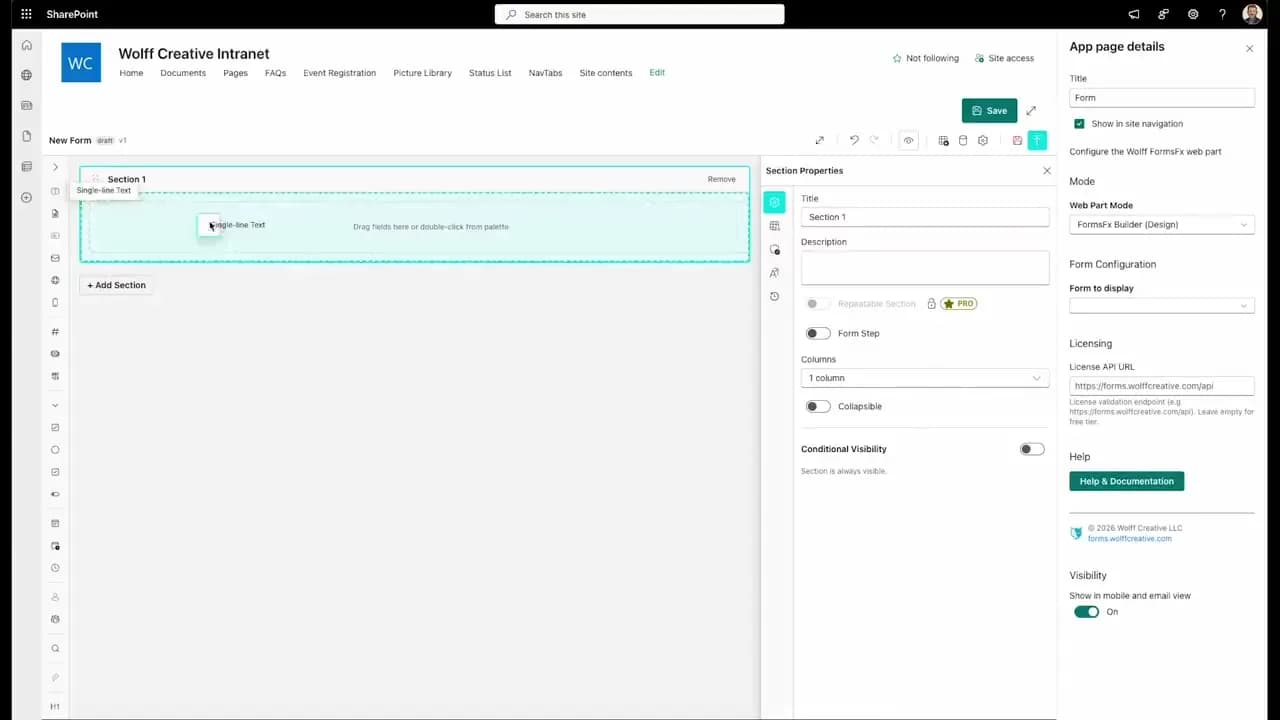
FormsFx: A Drag-and-Drop SharePoint Form Builder with Rules, Formulas, and Cascading Dropdowns
We built a SharePoint form builder that does what InfoPath did — conditional logic, calculated fields, cascading dropdowns — but runs natively as an SPFx web part. Here's how it works under the hood.
Read More →
FormsFx Has a Built-In Submissions Dashboard — Here's Why That Matters
Most SharePoint form builders stop at form submission. FormsFx includes a full dashboard for managing, searching, filtering, exporting, and approving submissions — no Power BI or custom views required.
Read More →
Offline Forms, Webhook Signatures, and Enterprise Connectors — FormsFx Beyond SharePoint Lists
FormsFx doesn't just write to SharePoint lists. It supports offline submission queuing, HMAC-signed webhooks for Power Automate, and enterprise connectors for SQL Server, Dataverse, REST APIs, and Azure Service Bus.
Read More →Need Help With This?
I help Eastern Shore businesses with web development, marketing, and AI automation. Let's talk about your project.
Need Help With Your Project?
Ready to take your business to the next level? Let's discuss how I can help.