Navigation Tabs: A Free SharePoint Web Part for Organized Link Navigation
SharePoint's built-in link options are clunky. Navigation Tabs gives you tabbed categories, three layout styles, drag-and-drop ordering, and click tracking — all from a simple SharePoint list.
Every SharePoint intranet ends up with a link problem. Departments need quick access to tools, portals, forms, and external sites. The out-of-the-box Quick Links web part works for a handful of items, but the moment you have 20, 30, or 50+ links across multiple categories, it turns into an unmanageable wall of icons.
I built Navigation Tabs to solve this. It reads links from a standard SharePoint list, automatically groups them into tabbed categories, and renders them in one of three layout styles. Free, open source, MIT-licensed.
The Problem with SharePoint's Built-In Link Options
SharePoint gives you a few ways to display links: Quick Links, Link web part, Hero web part, and plain hyperlinks in text. They all share the same limitations:
- No categorization — You can't group links into tabbed sections. Twenty links from five departments all live in one flat list.
- No central management — Each link is configured individually in the web part. Want to update a URL? You're editing the web part on every page it appears.
- No usage data — You have no idea which links people actually click. Dead links sit alongside heavily used ones with no way to tell the difference.
- Limited layouts — You get the layouts Microsoft ships, and that's it. Card, list, or filmstrip — none optimized for dense link navigation.
Organizations work around this with custom HTML, embedded pages, or expensive third-party solutions. Navigation Tabs handles it with a SharePoint list and a property pane.
How It Works
The concept is straightforward: create a SharePoint list with your links, add a Category column, and the web part does the rest.
Links Live in a SharePoint List
Every link is a list item with these fields:
| Column | Purpose |
|---|---|
| Title | Display name for the link |
| LinkURL | Where the link goes |
| Category | Which tab it appears under |
| LinkDescription | Optional description (shown in Card layout) |
| LinkIcon | Custom thumbnail/icon image |
| SortOrder | Control ordering within a tab |
| OpenInNewTab | Override the default new-tab behavior per link |
| IsActive | Hide a link without deleting it |
| ClickCount | Auto-incremented — tracks how often each link is used |
Don't want to create the list manually? The web part includes a built-in List Generator that creates a pre-configured list with all the right columns directly from the property pane. One click.
Three Layout Options
Different pages need different densities. Navigation Tabs ships with three layouts, selectable from the property pane:
Card Grid The default layout. Links display as cards with icons, titles, and optional descriptions. Configurable grid — 2 to 6 cards per row.
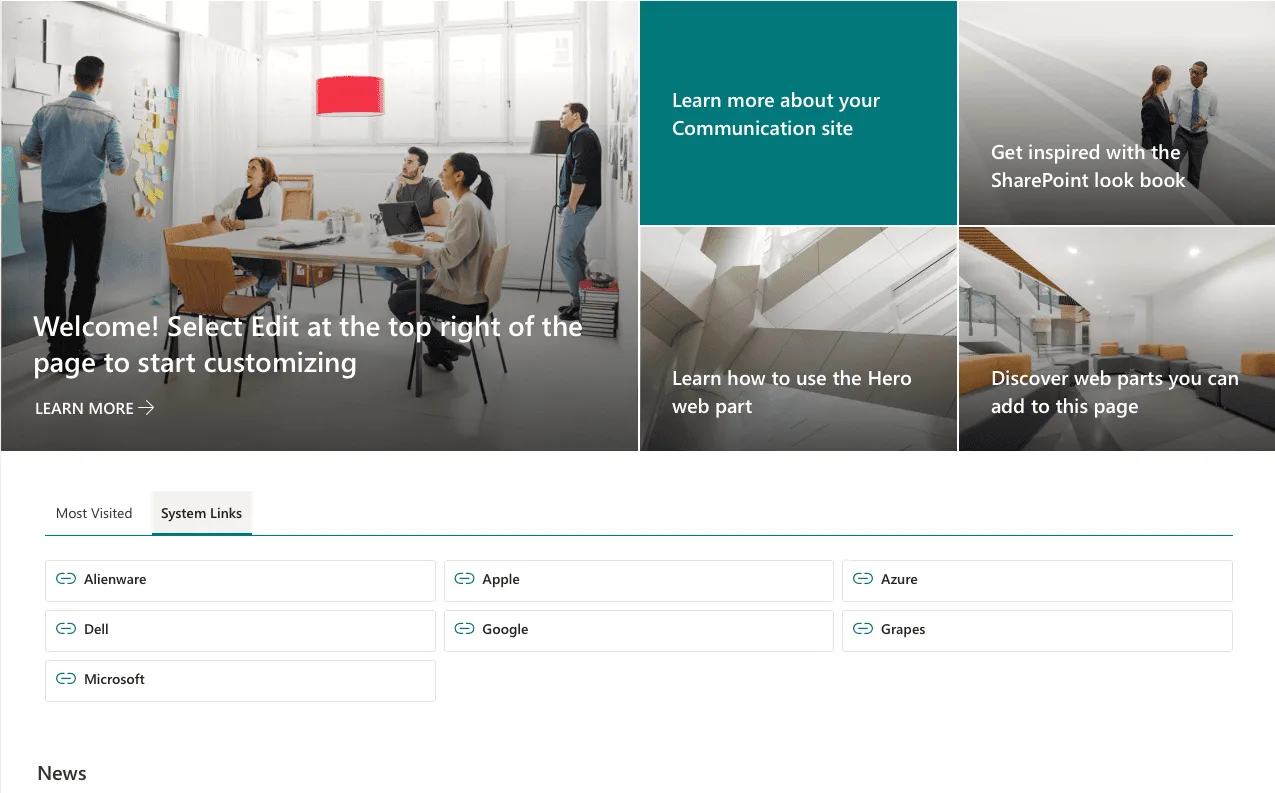
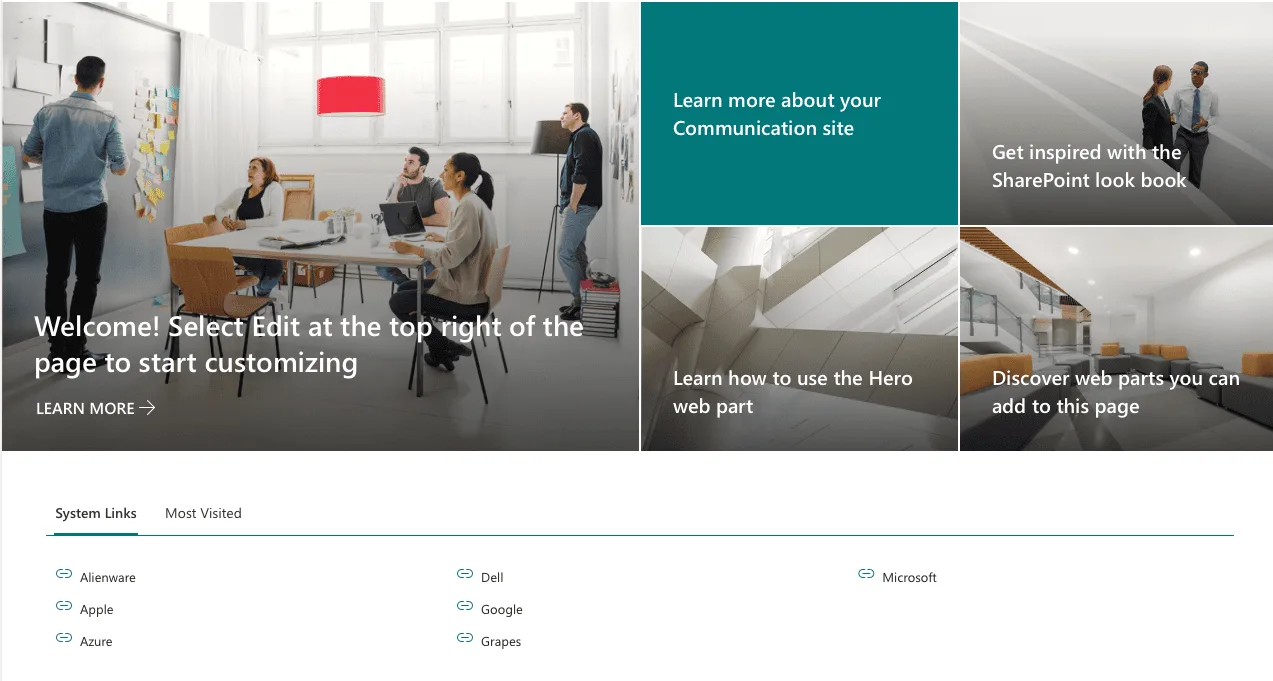
Compact List A dense vertical list for sidebar placement or pages with limited space. Just icons and titles, no descriptions.
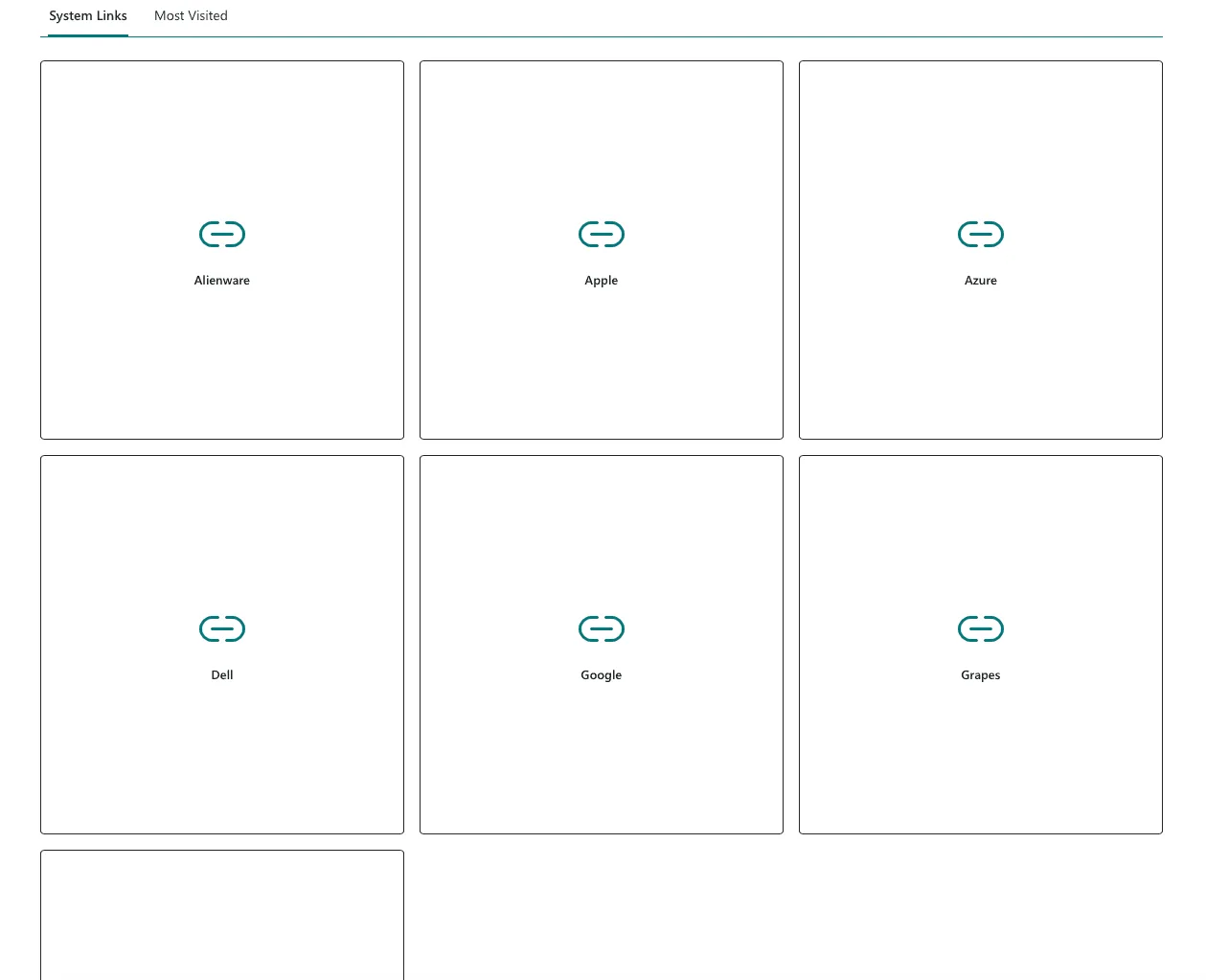
Tiles Large icon tiles for an app-launcher experience. Great for department landing pages where visual recognition matters more than density.
Tabbed Categories
Links are automatically grouped by their Category field value. Each category becomes a tab. Users click between tabs to find what they need — no scrolling through a massive flat list.
The tab order is fully customizable via drag-and-drop reordering in the property pane. Put the most-used category first.
Click Tracking
Every link click increments a ClickCount field on the list item. Over time, this tells you exactly which links your users rely on and which ones nobody touches. Use that data to clean up dead links, promote popular ones, or justify adding new tools.
No external analytics, no third-party services, no telemetry. The data stays in your SharePoint list.
Configuration
The property pane keeps everything simple:
| Setting | Description | Default |
|---|---|---|
| List | SharePoint list containing your links | (none) |
| Layout Type | Card, Compact, or Tile | Card |
| Cards Per Row | Items per row (2-6) | 3 |
| Show Descriptions | Display descriptions in Card layout | Yes |
| Open in New Tab | Default behavior for link clicks | Yes |
| Tab Order | Drag-and-drop category ordering | Auto-detected |
First-time setup takes about a minute: select a list (or generate one), pick a layout, and publish the page.
What Sets It Apart
Central Link Management
Because links live in a SharePoint list, updating them is trivial. Change a URL, add a new link, deactivate an old one — the web part reflects the change everywhere it's deployed. No editing web parts on individual pages.
This also means non-technical users can manage links. Anyone with Edit permissions on the list can add, remove, or reorder links without touching a SharePoint page.
Active/Inactive Toggle
When a tool goes offline temporarily or a link needs review, set IsActive to No. The link disappears from the web part but stays in the list. Flip it back when ready. No data lost, no re-entry needed.
Per-Link New Tab Control
The web part has a global "Open in New Tab" setting, but individual links can override it. Internal SharePoint links might open in the same tab while external tools open in new ones. The per-link OpenInNewTab field handles this without any workarounds.
Accessibility
Navigation Tabs meets WCAG 2.1 Level AA:
- Full keyboard navigation via Fluent UI Pivot tabs
- Screen reader support with semantic HTML and ARIA attributes
- All link icons include descriptive alt text
- Inherits SharePoint theme and supports high contrast mode
- Visible focus indicators on all interactive elements
Data Privacy
- Read-only access to the configured list (plus click count writes)
- No external API calls or third-party endpoints
- No telemetry or usage tracking beyond the ClickCount field
- Access governed by existing SharePoint list permissions
The Technical Stack
| Technology | Version | Purpose |
|---|---|---|
| SharePoint Framework | 1.22 | Web part platform |
| React | 17 | UI rendering |
| TypeScript | 5.6 | Type safety |
| PnPjs | 4.x | SharePoint REST API client |
| Fluent UI React | 8.x | Native SharePoint controls |
| @pnp/spfx-property-controls | — | List picker and drag-and-drop ordering |
The project follows the same clean architecture as my other SPFx work:
src/webparts/navigationTabs/
  components/
    NavigationTabs.tsx          # Main component
    TabContainer.tsx            # Tab switching
    LinkIcon.tsx                # Icon renderer
    layouts/
      CardLayout.tsx            # Card grid
      CompactLayout.tsx         # Compact list
      TileLayout.tsx            # Tile grid
      LinkLayoutRenderer.tsx    # Layout switcher
  services/
    NavigationLinksService.ts   # List data access and click tracking
  models/
    INavigationLink.ts          # Link data interface
    LayoutType.ts               # Layout type enum
Getting Started
Prerequisites
- SharePoint Online with an App Catalog
- Node.js v18.17.1+, v20.9.0+, or v22.0.0+
Installation
- Clone the repository and run
npm install - Build the production package with
npm run package - Upload
sharepoint/solution/navigation-tabs.sppkgto your tenant App Catalog - Deploy tenant-wide or to specific sites
- Add the Navigation Tabs web part to any SharePoint page
- Use the built-in List Generator to create your links list, or select an existing one
Use Cases
Department landing pages — Each department gets a Navigation Tabs web part with tabs for Tools, Forms, Policies, and External Resources. Card layout, 3 per row.
IT self-service portal — A single page with all IT tools, service desks, and knowledge base links. Compact layout for density, click tracking to identify the most-used resources.
New employee onboarding — Tabs for HR Forms, Benefits, Training, and Company Resources. Tile layout for visual clarity when everything is new.
Project hubs — Each project gets a tab with links to its document library, Teams channel, Planner board, and external tools. Compact layout embedded in a project site.
Two Free Web Parts, Same Philosophy
Navigation Tabs is the second free SharePoint web part I've released alongside WC - Events. Both follow the same philosophy: solve a real gap in SharePoint's out-of-the-box tooling, keep configuration simple, and release the code as open source.
If you find bugs or have feature requests, open an issue on GitHub. Contributions are welcome.
Need Custom SharePoint Development?
Navigation Tabs and WC - Events are general-purpose tools. If your organization needs something more tailored — custom web parts, workflow automation, intranet redesigns, or enterprise-scale solutions — that's what I do professionally.
Let's Talk About Your SharePoint Project
Navigation Tabs is a free, open-source SharePoint Framework web part built by Wolff Creative. It's MIT-licensed and available on GitHub. Get in touch if you need custom SharePoint development for your organization.
Tags

About Kevin Wolff
Kevin is a web developer and digital strategist based in Ocean City, MD. He specializes in creating modern websites, SharePoint solutions, and digital marketing strategies that help businesses grow online.
Free: AI Readiness Checklist
Subscribe and instantly download our 15-question checklist to discover where AI automation can save you time and grow your business.
Related Articles
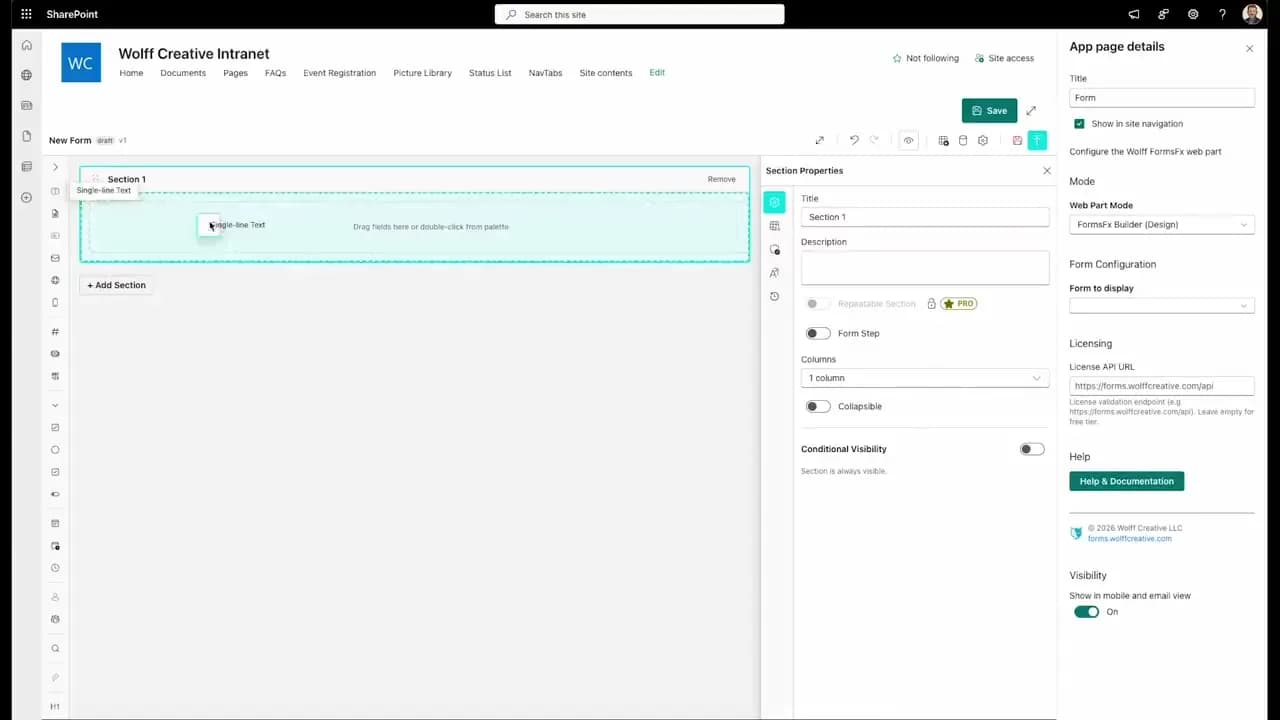
FormsFx: A Drag-and-Drop SharePoint Form Builder with Rules, Formulas, and Cascading Dropdowns
We built a SharePoint form builder that does what InfoPath did — conditional logic, calculated fields, cascading dropdowns — but runs natively as an SPFx web part. Here's how it works under the hood.
Read More →
FormsFx Has a Built-In Submissions Dashboard — Here's Why That Matters
Most SharePoint form builders stop at form submission. FormsFx includes a full dashboard for managing, searching, filtering, exporting, and approving submissions — no Power BI or custom views required.
Read More →
Offline Forms, Webhook Signatures, and Enterprise Connectors — FormsFx Beyond SharePoint Lists
FormsFx doesn't just write to SharePoint lists. It supports offline submission queuing, HMAC-signed webhooks for Power Automate, and enterprise connectors for SQL Server, Dataverse, REST APIs, and Azure Service Bus.
Read More →Need Help With This?
I help Eastern Shore businesses with web development, marketing, and AI automation. Let's talk about your project.
Need Help With Your Project?
Ready to take your business to the next level? Let's discuss how I can help.